
Skip to content
  • There are no suggestions because the search field is empty.

Wordline e-statement / settlement

The most important things to consider about the E-statement from Worldline 

Every time there is a payment from Worldline, the club will receive an e-statement on the email set up for this in the contract. The payments follow the agreement, e.g. daily, weekly or monthly. It is possible to change the frequency of the payouts by contacting GolfNext, who then asks Worldline to change the frequency.
 
An e-statement from Worldline should be sent in plain comma-separated text (.csv), and looks like below unless you import the text into a spreadsheet such as Excel.
 
 
To import the file into Excel, go to 'File > Open' and select 'Text file' in the file type. An import wizard will then help you through the various steps in the process. As the procedure for this is different in various versions of Excel, it is not possible to make a detailed description here, but it may be helpful to use the help section in your version of Excel.
 
 
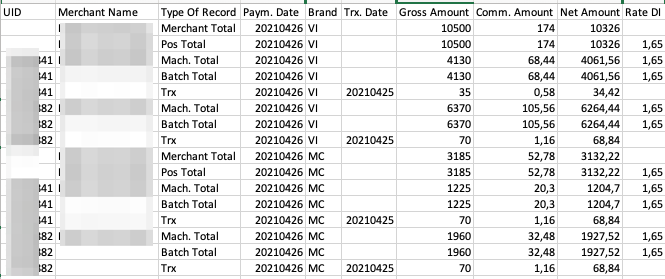
When the file is imported into Excel, the data will look like the image above, and is much more manageable. Below you will find a description of the various columns in the sheet.
 
As a rule, you only need to see the lines with the transactions to reconcile the accounts, so you can easily filter all other lines such as totals off the sheet. In addition, you need to filter the sheet if you have more than one agreement with Worldline, so that the agreements are grouped. See this quick example of how it can be done:


By default, your e-statement is grouped by payment card. VI= VISA and MC=Mastercard etc. For each payment card you have the following information:

UID: This is the number of your payment agreement. If you have more Worldline terminals, there will be correspondingly more UID numbers.

Merchant Name: The name of the agreement

Post types:

  • Merchant Total: This is the total of all transactions for the parent card type.
  • Pos Total: This is the total of all transactions for that card type for all appointments at the location (if the club has multiple locations)
  • Mach. Total: This is the total of all transactions for the specific card type for the specific deal.
  • Trx: These are the individual transaction lines.

Paym. date: The date the payment is made to the club

Brand: The card type

Trx Date: The date the amount is paid by the customer

Gross Amount: This is the amount the customer has paid

Comm. Amount: This is the fee for Worldline - based on the percentage specified in the 'Rate' column. Please note that this is an average fee and each month there will be a final correction based on the current exchange rates.

Net amount: This is the amount transferred from Worldline after the fee has been deducted. The total is calculated as merchant total for each card type.

 If this is your first time visiting this article, please note that some changes have been made by Worldline since this article was written. You can get an overview of the changes here. 
 
Please let us know if you have any questions.