
App Overview
The GolfMore app has been completely redesigned with a fresh, modern look. Here's a walkthrough of the app features and how to use them. We will briefly go through all aspects of the app.
Have you not yet downloaded our app and setup your profile - please have a look at this guide and get set up. The end of the article will take you back to this page.
When opening up the app - you are always greeted by the 'Wallet' section. This is where you will find all of the clubs for which you currently have either vouchers or points available to use at the driving of the specific club.
This section gives you a quick overview of how many vouchers and points you have for each club. Your home club will always be displayed at the top of the page, and from then the order the clubs are shown in is determined by your proximity to the club. Closest club comes up first, and so on.
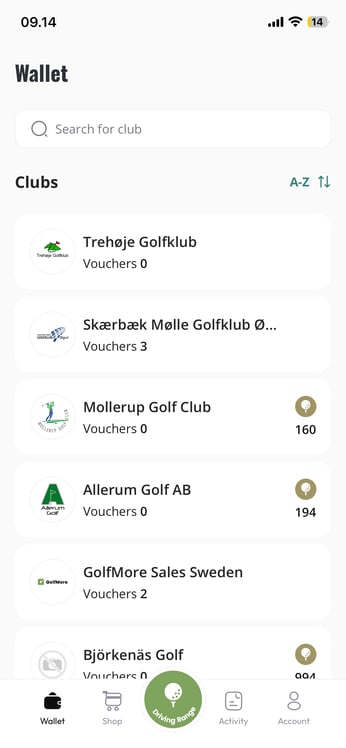
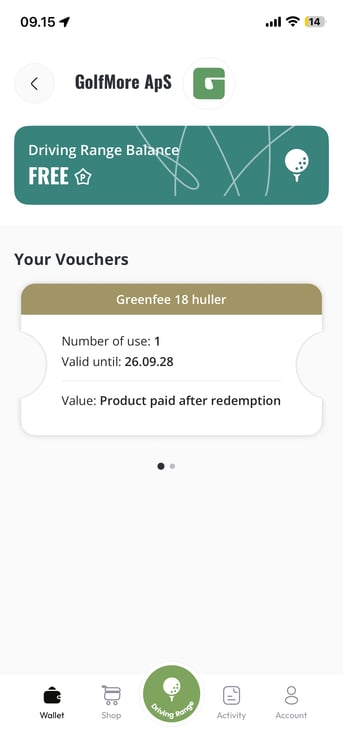
Tap a clubs' logo name or logo in order to get further inforation on the products you have available for the specific club. In the example below we have one Greenfee ticket for 18 holes for the 'Golf Club' "GolfMore ApS" which expires on 26/9-2028.
The example below also shows what it would look like if you have free driving range balls. If you don't have free balls, but instead have an amount of points. The amount of points will be listed under 'driving range balance'.
Tap the voucher if you want to see the different codes of the vouchers you have, or if you want to transfer your voucher to another GolfMore app user.
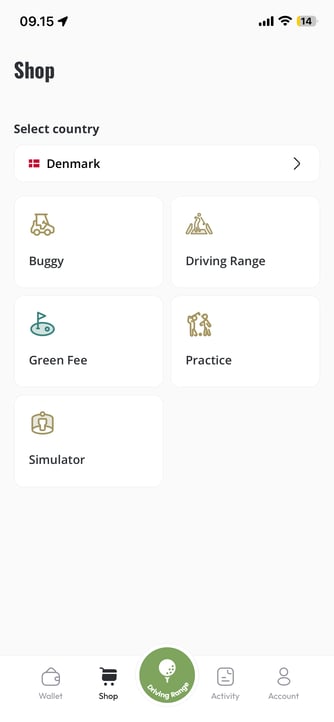
The next part of the app, is the shop function. This is where, as a player, you can find products that golf clubs or driving ranges have put up for sale. This goes for driving range balls, green fees, buggy cards, discounted simulator products or even practice lessons. Choose your desired country and go through the selection of all the clubs in said country in the labeled sections below.
Please note that some products might just be available for members, sponsors or limited in some other way, as the Golf Clubs can taylor this to their wants and needs.
Are you going on abroad to play golf in a different country - you can even buy range balls for the golf club you will be visiting before you travel, if the club has the GolfMore range system.
Are you a member of staff at a Golf Club, and wondering how to setup these products - please have a look at this guide.
Tap the big 'Driving Range' button in the middle of the screen whenever you want to dispense balls at a driving range.
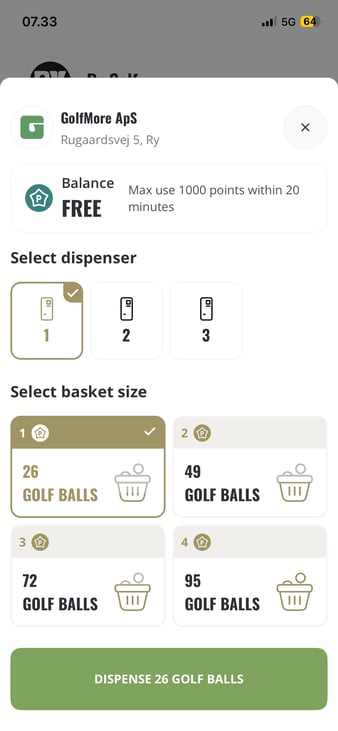
If you are in front of a ball machine that has a GolfMore payment terminal - this screen will pop up. It will give you some important information.
-
It shows you your points balance or says 'FREE' if you have free range balls at that driving range.
-
It tells you if there is a limit to how many range balls you can dispense, and what that limit is. In the case below - Maximum 1.000 points can be spent within 20 minutes
- You will also need to choose which dispenser you are at, if the driving range has more than one
- And lastly you need to choose which size basket you want to dispense. Important thing to note - you have to choose the app option on the dispenser before you tap 'Dispense balls' in the app
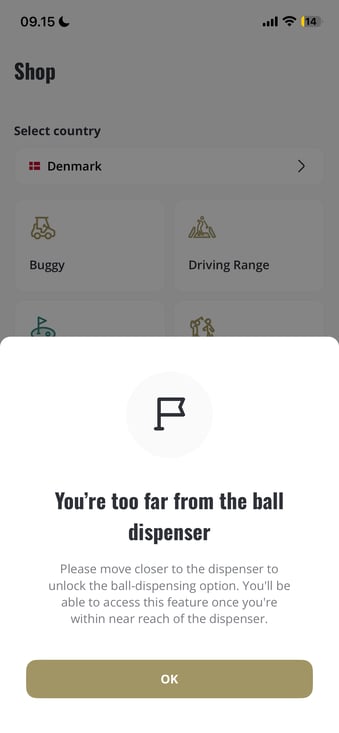
If you are not at a GolfMore partnered driving range, or simply too far from the machine - you will see this message:
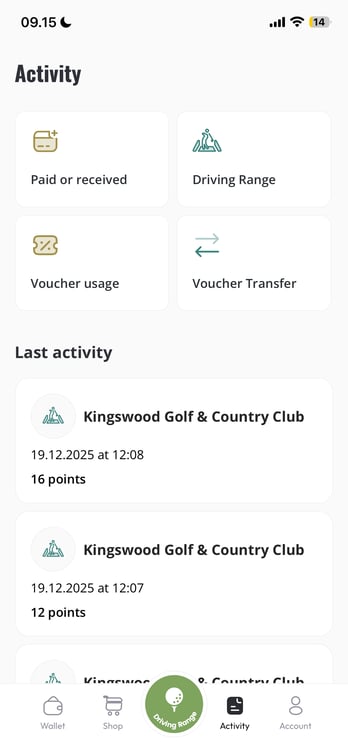
In the 'Activity' section you will have a full overview of all your activity within the GolfMore ecosystem.
You can see:
-
Which vouchers you have purchased or received from clubs or other users
- Which vouchers you have used, as well as where and when
- Your driving range activity - split up into different locations. So you can choose between the driving ranges you have visited and see how many balls you dispensed
- Your pending voucher transfers as well as previously accepted vouchers
You also have all of your latest activity always available as a quick list at the bottom of the page.
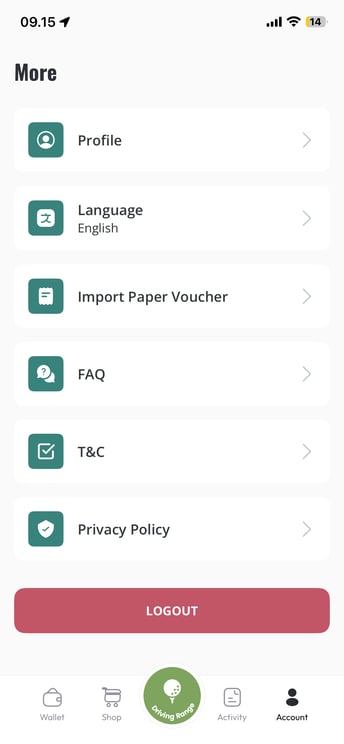
The final section of the app is your account section. This is where you need to go to import a voucher to your app if you currently have it in the form of a physical voucher. Here is a short guide on how to import your voucher.
Other than the function above, the 'account' is where you find:
-
Your profile information which can be edited here
- Language settings
- FAQ - which is updated continuously
- GolfMore terms & conditions
- Privacy Policy
- Logout option
Thank you for reading - feel free to contact us in case you have any questions, suggestions or general feedback