
Dashboard
This page gives you a quick overview of, among other things, how many active (unused) codes and Points are in circulation. This is also the quickest way to see if your dispenser is up and running and connect to the GolfNext. online (green) or offline (red). 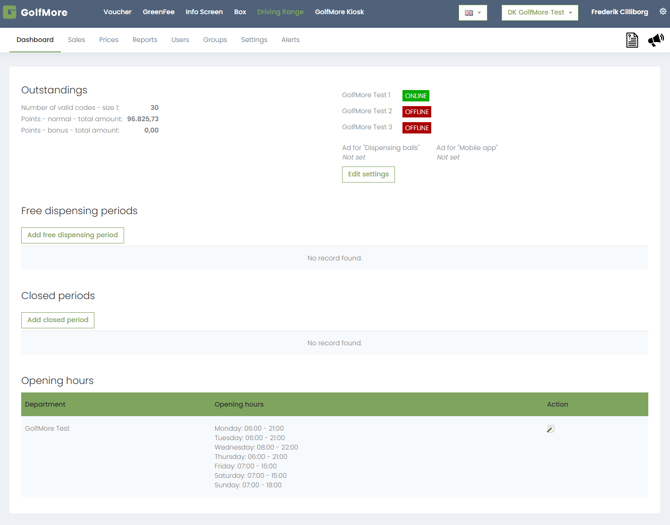
Free Ball Dispensing
To set up a period of free ball dispensing, simply create it here. This can be beneficial, for example, if the club has a Company Day sometime in the future, and you want free ball dispensing just before the event starts. This can also be done directly on the payment unit through the admin login.
In the example below, a one-hour period has been created between 8 AM and 9 AM, on dispensers 1 and 2. To select more than one dispenser, hold CONTROL on the keyboard while clicking on the dispensers. Even if the club only has one dispenser, it must still be selected to save the period.
It is also possible to create recurring periods of free ball dispensing, either daily or weekly and you can even add an image to be displayed on the terminal in the free balls period i.e. a company logo. 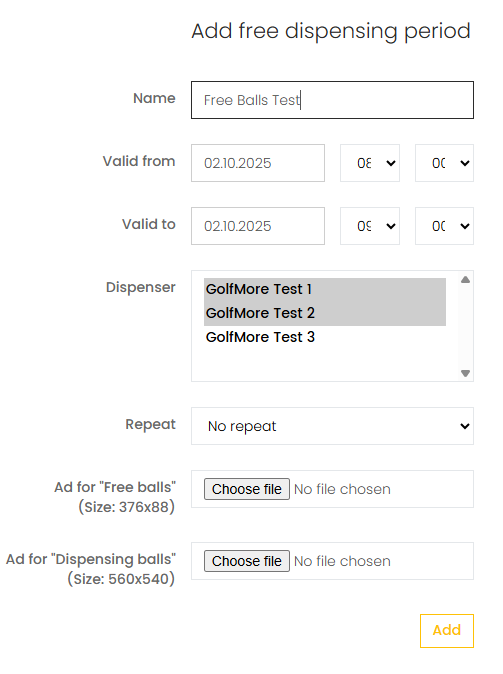
Closed Periods
In the same way that you can create periods of free ball dispensing, it is also possible to create a period where the dispenser/dispensers are closed. This can be advantageous, for example, if the club mows the grass on the driving range at one or more fixed times during the week.
In the example below, all dispensers on the driving range are closed every Tuesday (the first selected date is a Tuesday) between 8:00 AM and 11:00 AM, and this schedule repeats every week for the next 9999 weeks. If you have more than one time during the week that needs to be closed, you create another closed period afterwards. 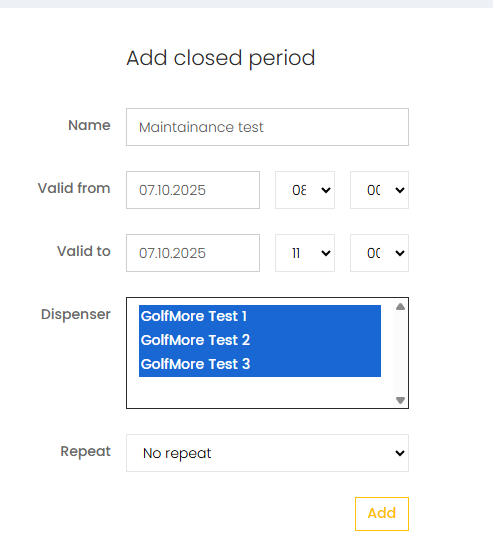
Sales
In this menu, you can create codes for ball dispensing or top up credit in the form of Points, bonus Points, or free balls on the users' accounts.
Codes
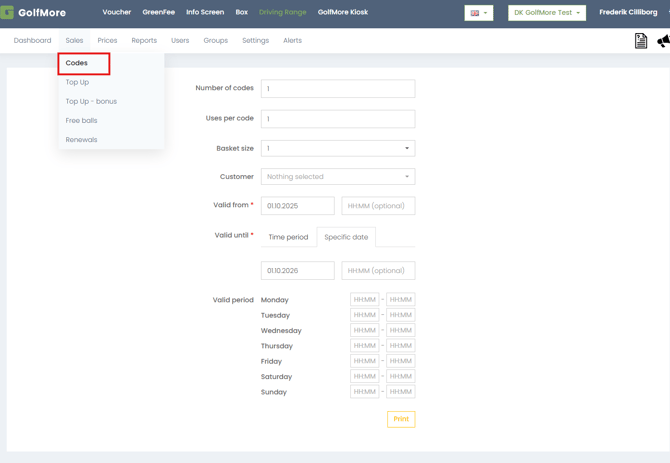
On this page, you can create codes to use in ball dispensing on the driving range. You can create one or more codes simultaneously, and these codes can be used one or more times each. If the club has several basket sizes, you select which basket size the code is valid for.
The code can be linked to a pre-existing customer for the purpose of making reporting on the code's usage easier. The customer's name is not printed on the code, so this function is solely for reporting purposes.
You can select a valid-from date and an expiry date for the code. Finally, it is possible to set restrictions on when the code can be used during the day or week. This can be useful, for example, if you issue a code that you don't want to be used during peak times on the driving range.
The codes are always generated as a PDF file for printing. However, it is also possible to send a PDF file with a code via email to a customer, allowing them to print it out themselves.
Top Up (Products)
Here, you can create fixed products for topping up user accounts and add these products to customer accounts.
GolfNext always uses Points as currency, not balls or money. As a customer, you buy a number of Points, which can then be redeemed for various products. This gives the club the opportunity to reward users who buy larger and more expensive account top-ups, or who practice during less busy periods on the driving range.
In the example above, 4 products have been created, where users receive between 20% and 50% extra Points, depending on how much money they spend.
Top Up (Products)
Here, you can top up credit on a user, a user's NFC card, or an NFC card that is not linked to a user.
First, start by searching for the user to whom you wish to add a product or credit. Note! If you enter a Golf-ID, you must also select a country, as there may be overlaps of Golf-IDs in the different countries where GolfNext is represented. If you search using an e-mail or NFC card number, this is not necessary.
If you wish to use an NFC card in the search, place the cursor in the search field next to NFC card, and put the card on the USB card reader provided by GolfNext with the system. The card number will then be read, and you can press 'Search'.
The search result will then appear as shown below (image originally present). Now you can either add credit by selecting one of the created products or you can add a specific number of Points to the account.
Remove points from account
It is just as easy to reduce the balance on a customer's account simply by adding a negative number of points, as shown in the example below.
Create Product
Below you see an example of creating a new top-up product where 10% extra is given. The product is selected as visible for portal sales (GolfNext app), but only for members. It is also possible to choose that the product should only be shown in the app for users who are members of a defined group.
Finally, it is possible to set an expiry date for sales of the product in the app, as well as hide the product in the app on specific weekdays.
Top-Up - Bonus
This page has the same functionality as the 'Top-Up' page. The big difference is that bonus points have an expiry date, while regular points do not.
Here you can also create (bonus) products, which makes it easier to assign a certain number of points to many players at once. This could be, for example, in a club where all members are given 500 points for balls free of charge every year, and subsequently they must pay for balls via the regular products or on a pay-as-you-go basis. These 500 points can then be awarded every spring, with an expiry date of December 31 of the same year.
If a player has both bonus points and regular points in their account, the system will always use the bonus points first.
Next, the player is located by selecting the country and entering either the Golf-ID or email address in the fields at the bottom. When the value has been entered in one of the fields, the cursor is moved using the tab key —this searches for the user in the system, and the line should then turn GREEN, indicating that the user has been found.
If the user field is marked with YELLOW, it means the user has not been found.
If the user field is marked with RED, it means the user has been found but cannot be assigned the product. This is typically because the user already has a Free Balls product. In the red marking, a small question mark appears, and by clicking on this, you get the explanation of why the product cannot be added.
It is possible to upload an Excel file with either membership numbers (Golf-ID from Golfbox) or email addresses if you wish to assign the product to many users at once. After importing, it is essential to review the entire imported list on the screen after import and delete all users with a YELLOW or RED marking before the product is finally assigned.
Free Balls
Free Balls provides the user with unlimited ball usage within a specified period. However, it is possible to set certain restrictions, for example, a maximum of XX number of points within X number of minutes. This can be useful if you want to limit players from dispensing balls for purposes other than their own consumption and avoid misuse of the free balls function.
Free Balls is typically used for staff, juniors, or elite players, or can be sold as a product to members allowing them to pay a fixed amount per year to have free balls.
Add Free Balls
Here you must select a product from the list (see how to create it below), and a valid from and to date. If desired, you can set the product to renew automatically at selected intervals.
Next, the player is found by selecting the country and entering either the Golf-ID (Golfbox number) or email address in the fields at the bottom. When the value has been entered in one of the fields, the cursor is moved with the tab key— this action searches for the user in the system, and the line should then turn GREEN, indicating that the user has been found.
If the user is marked with YELLOW, it means the user has not been found.
If the user is marked with RED, it means the user has been found but cannot be assigned the product. This is typically because the user already has a Free Balls product. In the red marking, a small question mark appears, and by clicking on this, you get the explanation of why the product cannot be added.
It is possible to upload an Excel file with either membership numbers (Golf-ID from Golfbox) or email addresses if you wish to assign the product to many users at once. After importing, it is important that you go through the entire imported list on the screen after import and delete all users with YELLOW or RED marking before the product is finally assigned.
Automatic Renewals
Here you will find a quick overview of the products that have been set up with automatic renewal. The reason they are gathered here is that they can be difficult to find under the respective sections and in the list with other orders—and there is often a need to delete an automatic renewal that might otherwise continue.
Delete an Existing Order
If a player has been assigned a product that needs to be removed from the player again, there are different ways to do this.
All orders under the Bonus and Free Balls sections are listed in the respective sections, and if you want to deactivate an order, simply press 'Deactivate' in the overview. This is the same as deleting the product, but for historical reasons, a previous order never disappears from the overviews.
You can also simply search for the player under the 'Players' menu item and find the product there—the product is then deactivated in the same way.
Prices
On this page, you set the prices for the individual products on the dispenser itself—that is, the products that can be bought and paid for from the payment terminal on the ball dispenser.
Code Settings
Under this item, you can select the Standard Basket Size (1-4 from the column on the right). The price is set to the same as indicated to the right of the respective basket size. Note that the standard basket size is also what is dispensed when 'Pro dispense' is selected on the machine (when the Pro dispenses, for example, 20 baskets of balls for practice at once).
The validity period you set here applies to all codes generated for the ball dispenser.
Basket Prices
It is important that there are prices for all products under the 'Basket Prices' column on the right—otherwise, an error will appear on the screen. The number of basket sizes is set under the 'Settings' menu item.
You must set a price in your local currency and a number of balls for each basket size. The price is entered with a '.' (dot) between decimals, and it is important to note that the number of balls is what is shown to the user, but this must also be set in the hardware of your ball dispenser to the corresponding number of balls. The GolfNext system can NOT change the number of balls dispensed on each channel in the ball machine, but is merely set up to inform the user how many balls they are buying. This number (of balls) is also used for the club's statistics on how many balls have been dispensed on the driving range.
Reporting
Payment Report
In this report, you can see a summarized balance of how much has been paid in via credit card, MobilePay/Swish, and portal sales (app) in the selected period, and the individual days are also broken down below the report.
Accounting Report
In this report, you can see a summarized balance of how much has been paid in via credit card, MobilePay/Swish, and portal sales (app) in the selected period. In addition, the number of redemptions on codes for the respective products (basket sizes), staff, etc., is shown. Finally, an overall status is given for the balance of points in circulation (accumulated/consumed) and the new balance.
Management Report
The management report shows the following graphical views:
-
Total ball dispensing per payment type
-
Activity report per day in the period
-
Busiest time of day (hour by hour)
-
Busiest time of the week (day by day)
-
Sales (staff sales and portal sales) in the period
-
Free products via admin/staff
-
Use of points
-
Codes
-
Top 10 purchases via the app
Advanced User Report
In this report, you can search for the individual player using name, email, phone number, NFC card, address, or Golf-ID. The report only searches among members of the club and other players with products in the club. When the player is found, a detailed overview of all movements on the driving range part of the account is displayed.
Member Balance Report
Here you can see a balance, totally or divided by product, of which customers have 'Free Balls products' and what the balance is in points per individual user.
Dispensing Report
This report shows an overview of how many balls each individual player has dispensed in the specified period, broken down by normal points and bonus points.
Best Periods
The Busiest Periods report provides a heatmap over the selected period, where you can see which days and times have the most activity on the driving range.
Free balls periods Report
Here you can see how many times in the selected period the individual codes for pro-dispense have been used on the ball dispensers, as well as the exact times and number of balls for each use.
Top-Up Report
This report shows how many points have been added to the individual accounts via portal sales and staff sales/top-up.
Free Balls Products report
Here you can see which Free Balls products are active in the specified period, and the list of users who have the products.
Transactional Report
Here you get a detailed report with all transactions on one or all ball machines, sorted in chronological order.
Codes Report
Here you can see the statistics for the codes generated for the driving range—and you can filter by a single code or a specific customer, making it easy to see the history of all codes issued. At the top, a small statistic is also shown for which basket sizes have been used and the number of codes per customer.
Marketing Report
The marketing report can be used to find users you wish to market to. You can choose from the following criteria:
-
Has dispensed balls in this period
-
Has not dispensed balls in this period
-
Has not topped up balance in the period
-
Has created an account in the period
-
Current balance is at...
It is possible to combine several of the above filters, so you can, for example, find users who have created an account this year, but have not topped up their balance in the last 2 months and have a balance below 200 points.
Thank you for reading - feel free to contact us in case you have any questions, suggestions or general feedback.